




Please note that the only procedures supported and maintained by Centreon are those published in the official documentation. If you have a question about this article, post it in the comments.
Centreon Infra Monitoring now offers a Matrix42 connector for Centreon Open Tickets, allowing your operators to open Matrix42 incidents directly from the monitoring console. This article provides a detailed guide to the complete configuration process from creating an API token to tracking the ticket within Matrix42.
Centreon Open Tickets in a nutshell
Centreon Open Tickets is an ITSM integration module. It turns one or more monitoring alerts into a ticket in your IT service management tool, with no copy-pasting between two interfaces.
In practice, it lets you:
- Open a ticket in one click on a host or service in alert, prefilled with the host, service, state, duration and check output.
- Automatically acknowledge the resource when the ticket is created.
- Keep the alert ↔ ticket link: the ticket ID is stored on the resource (TICKET_ID macro) and shown in the view, with a direct link to the ITSM tool.
- Close the ticket, with the closure applied in the ITSM tool when the provider supports it.
Open Tickets relies on "providers", one per ITSM tool: ServiceNow, Jira, GLPI, EasyVista, iTop, OTRS, Ivanti… and now Matrix42 (list of ITSM integrations).
The Matrix42 provider goes beyond ticket creation: the ticket status in Matrix42 (New, Assigned, In progress, On hold) is reported back in Infra Monitoring, and the ticket can be put on hold or closed from either interface. As long as a ticket stays open, a new alert on the same resource adds a comment to the existing ticket instead of creating a duplicate.
Step 1: create an API token in Matrix42
Infra Monitoring authenticates against the Matrix42 REST API with an API token, exchanged on each call for a temporary access token. Generate it in Matrix42 (official procedure):
- Open the Administration application.
- Go to Integration → Web Service Tokens.
- Click Generate New Token.
- Fill in the fields:
- Name: a descriptive name, for example
Centreon Open Tickets. - Expires at: 30, 90, 180 days, 1 year or Never Expires.
- User: the Matrix42 account CIM will act on behalf of. Its permissions apply to every API call.
- Name: a descriptive name, for example
- Generate the token and copy it immediately: it is displayed only once.
A few recommendations:
- Use a dedicated service account (for example "supervision"): it will appear as the Requester of tickets created from Infra Monitoring.
- This account must be able to create and update incidents, and read users, services, assets, categories and responsible groups.
- Note the expiry date: an expired token blocks ticket creation. Renew it in the Infra Monitoring UI before it expires.
- If the token leaks, disable or delete it from Administration.
Step 2: create the Matrix42 notification rule
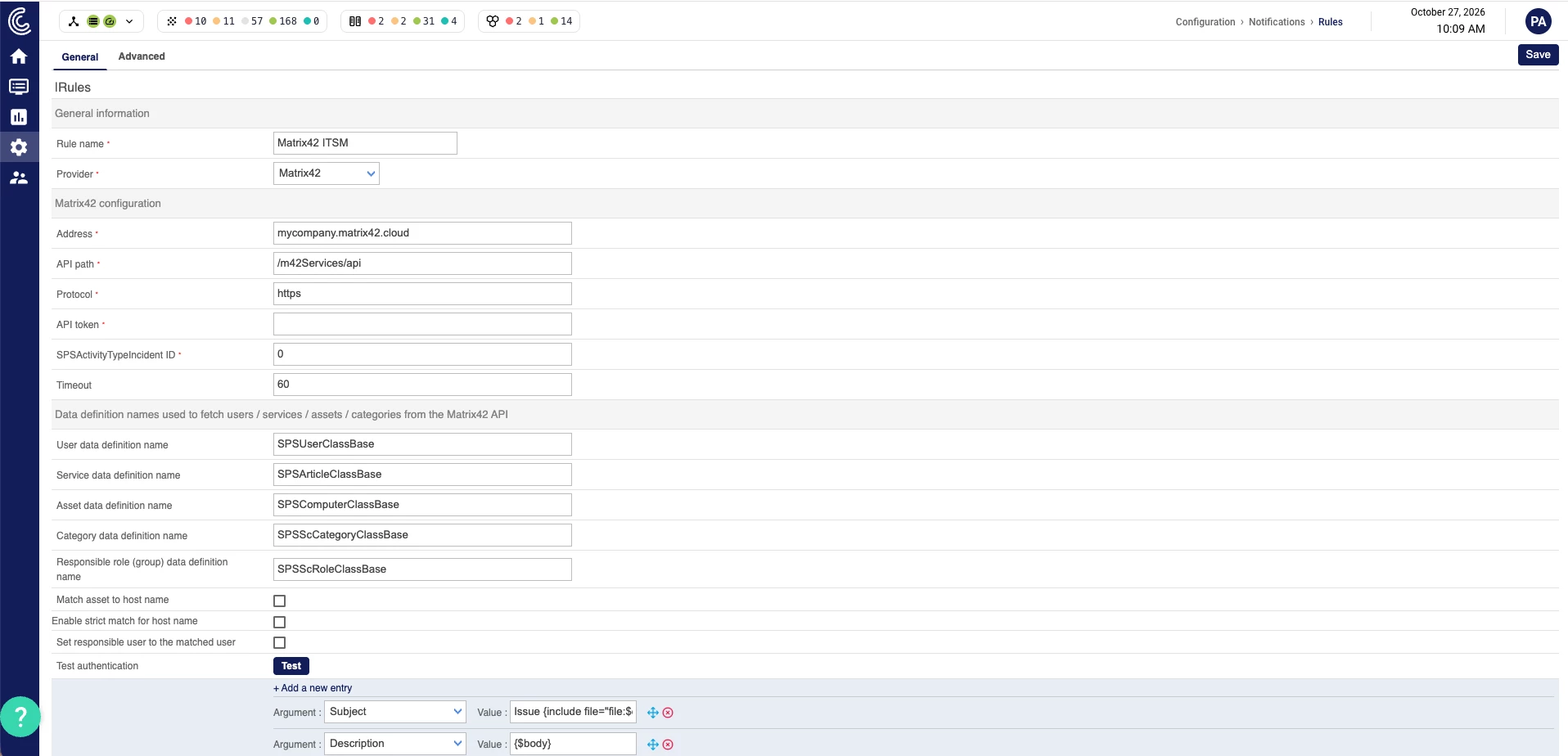
The rule connects Infra Monitoring to your Matrix42 instance and defines the ticket content. Go to Configuration > Notifications > Rules, click Add, enter a rule name (for example Matrix42 ITSM) and select the Matrix42 provider. The form then displays the Matrix42-specific fields.
Connection to Matrix42
| Field | Value | Purpose |
|---|---|---|
| Address |
| Instance host name, without protocol or path |
| API path |
| Root of the Matrix42 REST API |
| Protocol |
| Protocol used to reach the API |
| API token | token from step 1 | Authentication against Matrix42 |
| SPSActivityTypeIncident ID |
| Matrix42 activity type used for created tickets |
| Timeout |
| Maximum duration of an API call, in seconds |
Matrix42 data definitions
These fields list the Matrix42 reference data that populates the lists in the ticket creation form. The default values match the standard Matrix42 model; only change them if your instance uses custom data definitions.
| Field | Default value | Populates the list |
|---|---|---|
| User data definition name |
| User (beneficiary) |
| Service data definition name |
| Service |
| Asset data definition name |
| Host (asset) |
| Category data definition name |
| Category |
| Responsible role (group) data definition name |
| Responsible group |
Host matching
- Match asset to host name: preselects the Matrix42 asset whose name matches the Centreon host.
- Enable strict match for host name: requires an exact name match rather than a partial one.
- Set responsible user to the matched user: assigns the ticket to the user linked to the matched asset.
Then click Test (Test authentication) to validate the address, path and token before going further.
Ticket content
The argument list at the bottom of the form defines the fields sent to Matrix42. By default, Subject contains the host, service and state (for example SRV-PROD1/SYS_LIN_SWAP_Usage/WARNING), and Description contains the body generated by CIM ({$body}): host, service, state, duration, check output and operator comment. Add or reorder arguments with + Add a new entry, then click Save.
Prepare the display in Infra Monitoring
As with any Open Tickets provider (documentation):
- Add the TICKET_ID macro to the
generic-active-host-custom(Configuration > Hosts > Templates) andgeneric-active-service-custom(Configuration > Services > Templates) templates. - In Home > Dashboards, add two Resource table widgets: one with Resources with no tickets to open tickets, the other with Resources linked to a ticket to track open tickets. In the Ticket management section, select the
Matrix42 ITSMrule and enable ticket creation for hosts and/or services.
Step 3: create a ticket from your Infra Monitoring dashboard
In the widget listing resources with no ticket, select the host or service in alert, then click the ticket creation icon (Host or Service). The Open a ticket window appears.
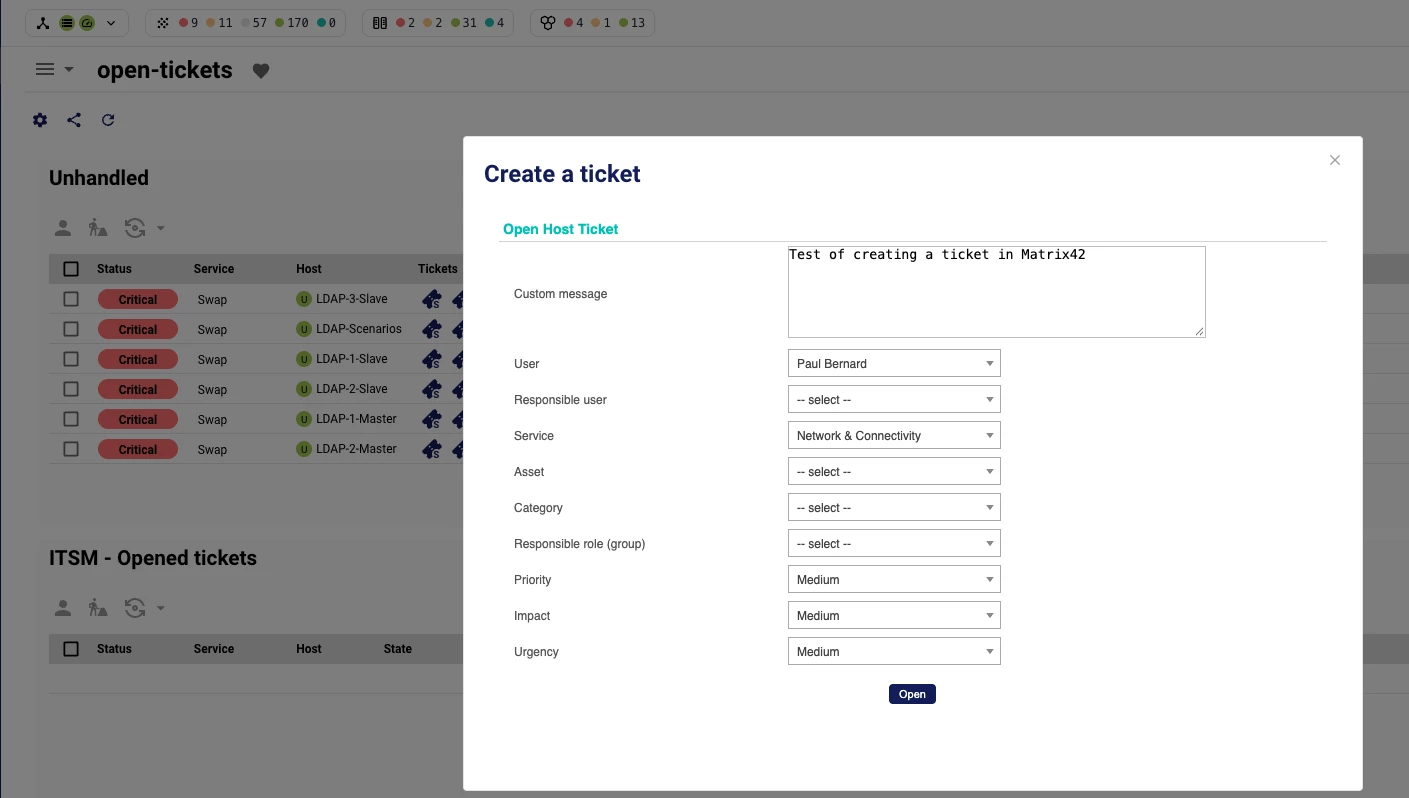
The lists are populated live from the Matrix42 API and prefilled as much as possible by matching Centreon objects with Matrix42 objects:
| Field | Content |
|---|---|
| Custom message | Free-text operator comment, added to the description |
| User | Ticket beneficiary |
| Service | Matrix42 service concerned |
| Host | Matrix42 asset, preselected when host name matching is enabled |
| Category | Matrix42 incident category |
| Priority, Impact, Urgency | Values from 1 to 5 sent to Matrix42 |
Click Open confirms the creation and displays the ticket ID:

The resource is acknowledged and moves to the open tickets widget, with the Matrix42 status New:

Step 4: view the ticket in Matrix42
A ticket created from Centreon is a standard Matrix42 incident. Click its ID in the widget to open it directly in Matrix42.
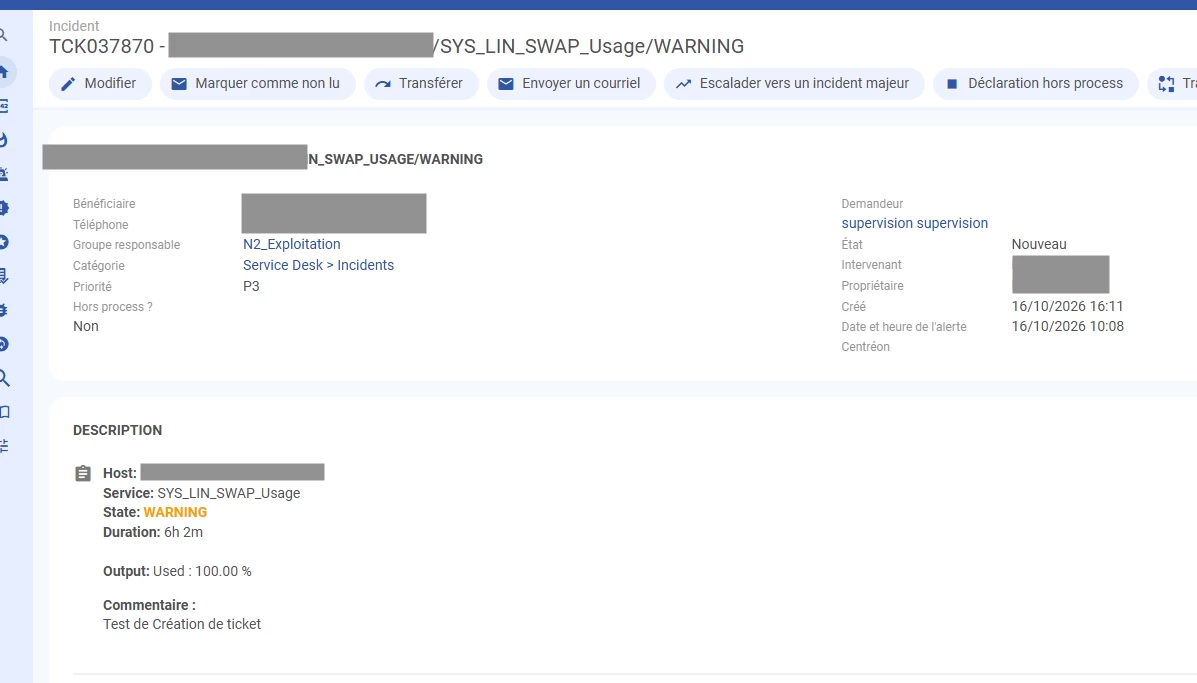
It contains:
- The title: ID followed by
host/service/state. - The fields chosen at creation: beneficiary, category, priority, responsible group.
- The requester: the service account linked to the API token.
- The alert date and time, distinct from the ticket creation date.
- The description: host, service, state, duration, check output and operator comment.
Summary
Three steps are all it takes to connect Centreon Infra Monitoring to Matrix42: an API token, an "Open Tickets" rule, and then the creation of tickets from the console.